SPAM Filter in Google Analytics 3
What SPAM ist and which types there are can be found in our Dictionary article about SPAM.
There is a built-in bot filter in Google Universal Analytics, which filters out most of the SPAM traffic. This can be activated in the corresponding Google Analytics Dataview:
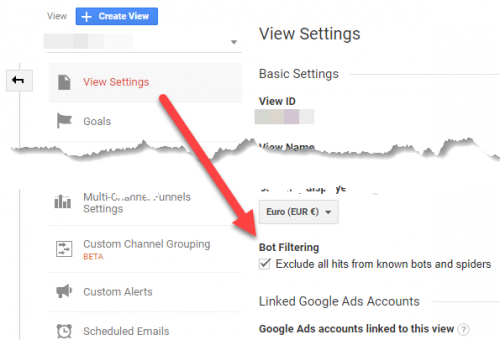
Unfortunately, this bot filter is not 100% effective against all SPAM attacks.
Most SPAM attacks use the Google Analytics Measurement Protocol. For Google Analytics 4 there is an API secret here to protect access via such access. Unfortunately, this does not exist for Universal Analytics (i.e. GA3).
However, there is an old trick that should work against all types of Analytics SPAM, at least for now. Unfortunately, I can't remember the source, if someone knows it, please message me. That must have been 2014/15.
The trick (only for Universal Analytics) works like this:
Step 1: Create a Custom Dimension
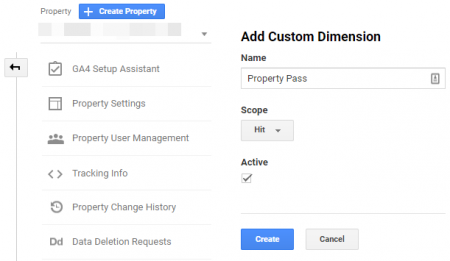
First you create a new Custom Dimension in Google Analytics (in the Admin under the property (column) under “Custom Definitions” click on “Custom Dimensions” and there click the (red) button “New Custom Dimension”. As the dimension name you can choose, for example, “Property Pass”, for “Scope” “Hit” should be selected:
For the next step we have to remember the index of the new custom dimension. It can be found in the list of custom dimensions:
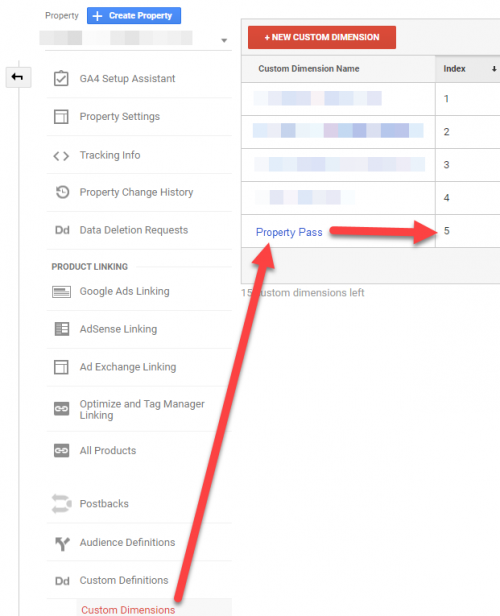
In our case, it is the 5
Step 2: Configure the Custom Dimension in the tracking code
This new dimension must now be sent in the Analytics Tracking Code. Instructions on how to do that in the normal Analytics code can be found right in the screen when you create a custom dimension in GA. It is important that the correct index of our new dimension is correctly specified in the tracking code, which we have noted above. The value can be freely determined, but must be noted again for the next step. In our case we use the number 7 as the value.
If you have integrated Google Analytics via the Google Tag Manager, you can configure the new dimension there. To do this, go to the variable with the Google Analytics Settings and add it there, specifying the memorized index:
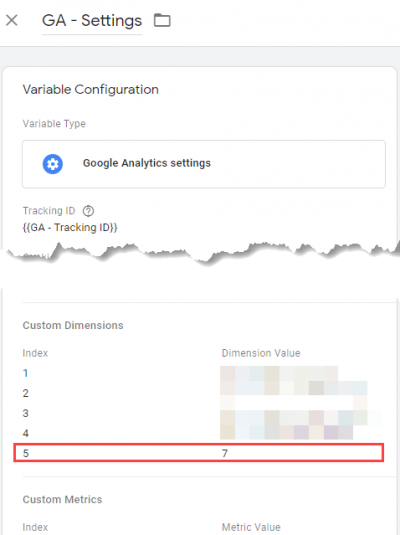
We have chosen 7 as the value, but you can determine it yourselve, but you need to remember it for the next step.
Step 3: Create a Google Analytics filter
Now we send a new custom dimension with the index 5 and the value 7 (in our case) to Google Analytics with every hit. In this last step we now create an include filter for our Analytics Dataview, which only lets through the hits that send this dimension with the correct value, a kind of password. Although this is publicly visible in the source code of the website, firstly it is not visible as a password (but only as any user-defined dimension) and secondly, the spammers (so far) have not bothered to close the tracking code on the page according to any dimensions sent analyze.
For the following scenario, a Test Dataview should first be created in Google Analytics, where the filter to be created can be tested. If it works, it can be transferred to the Live/Master Dataview(s).
So, we go back to the Google Analytics Admin, click in the column Dataview on filter and there on the red button “Add Filter”. We name the filter (e.g. “Dataview Pass”), select “Custom” as the filter type and then “Include”. In the filter field we now search for our dimension name (in our case “Property Pass”) and select it:
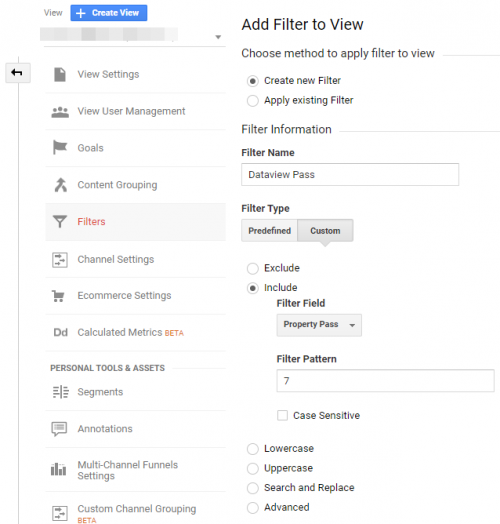
Now just save and then no more SPAM hits should arrive in the Dataview.
The spam hits that have been tracked so far, of course remain, since one in GA only limited data can erase ...